


Divisions
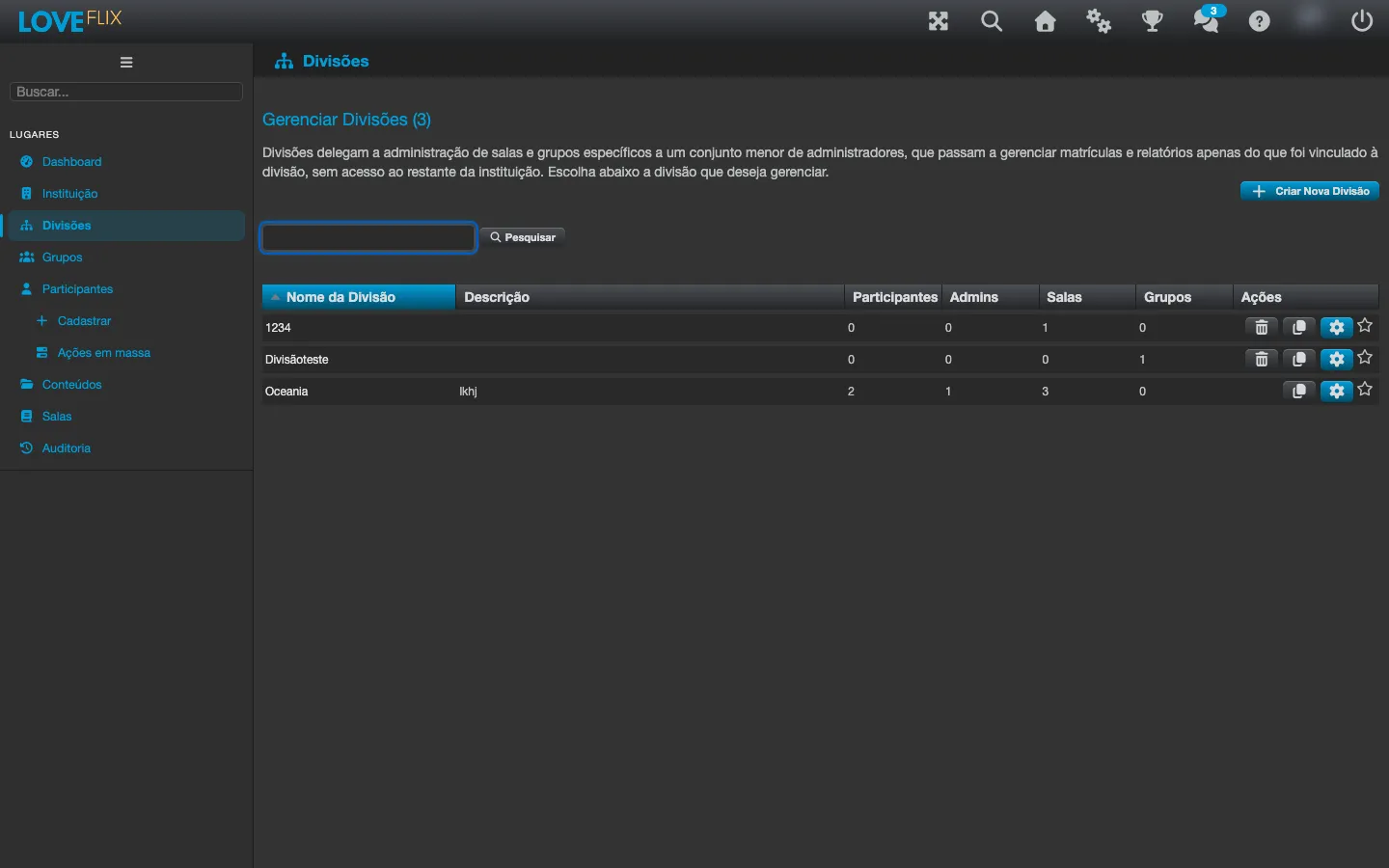
A division organizes the institution’s classes into administrative areas: a division administrator manages only the classes in their division, without seeing the rest of the institution.
How it works
Section titled “How it works”- Besides enabling divisions for the institution, each class must be configured to allow divisions before it can be assigned to one - only classes with that option turned on appear in the assignment list.
- When you assign a class to a division, all administrators of that division start managing it automatically - in practice, they can enroll participants and generate reports for that class; when you appoint a new division administrator, they receive access to every class already assigned.
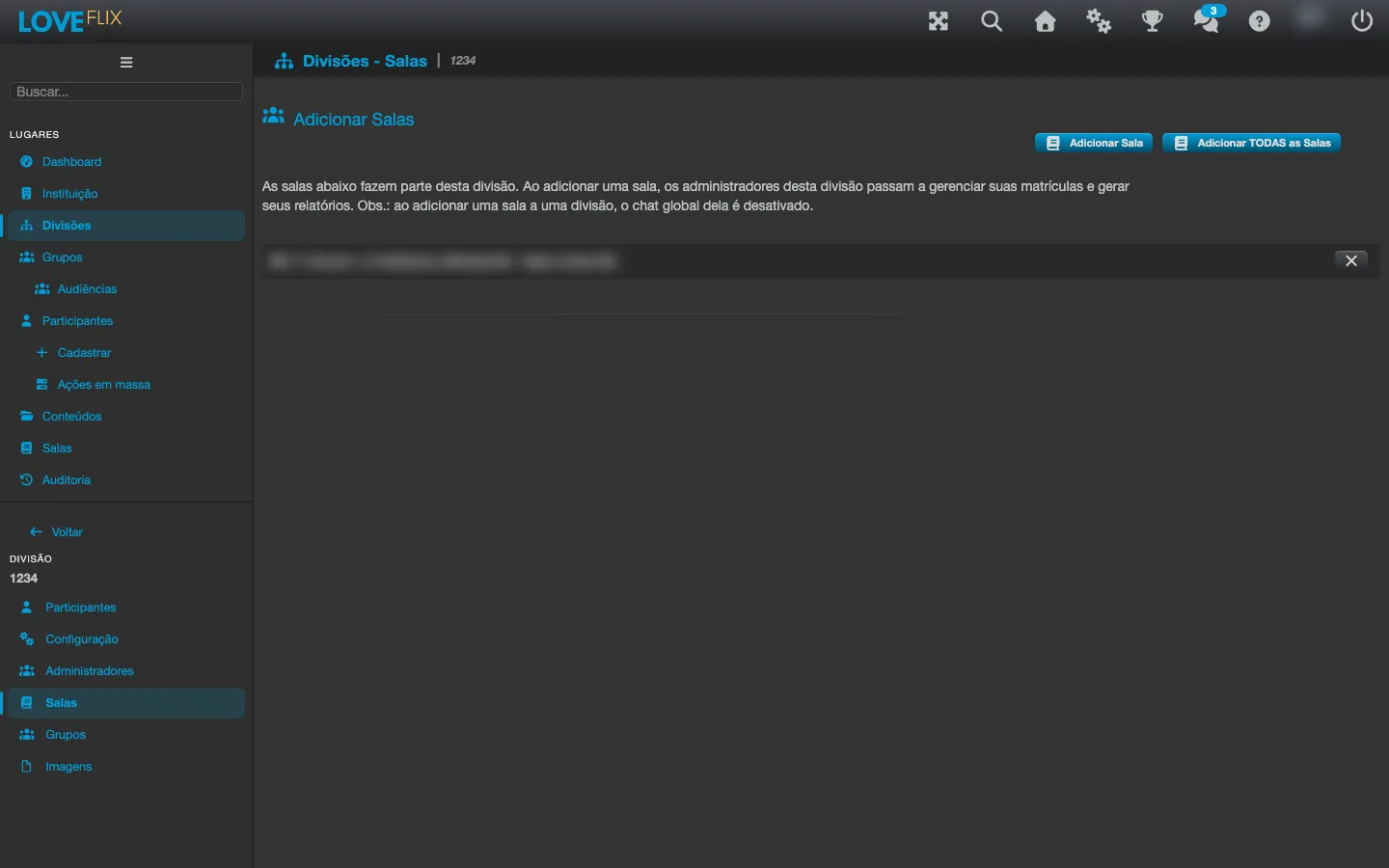
- Assigning a class to a division turns off that class’s chat (Global Chat, Tutor Chat, and Chat Dock) - see Chat and support channels.
- A person does not combine a division role with an institution-wide role - it is one or the other (the institutional role already covers every class).
A division’s screen
Section titled “A division’s screen”On the Manage Divisions screen you see the list of the institution’s divisions. The Admins column shows how many administrators the division has (any administrator not yet deleted counts, even a deactivated participant).
Clicking a division opens its screen, with its own address: you can save the link, reload the page and come straight back to the same division, and the browser’s Back button takes you back to the list.
A division’s screen has six tabs, and the first one you see when opening an existing division is Participants:
- Participants - the same table as Participants (name, username, status, registration, last access, enrollments and the same actions to manage, activate/deactivate, delete, resend the registration email and certificates), only already filtered to whoever belongs to this division - which is why it has no Division column, which would be redundant here.
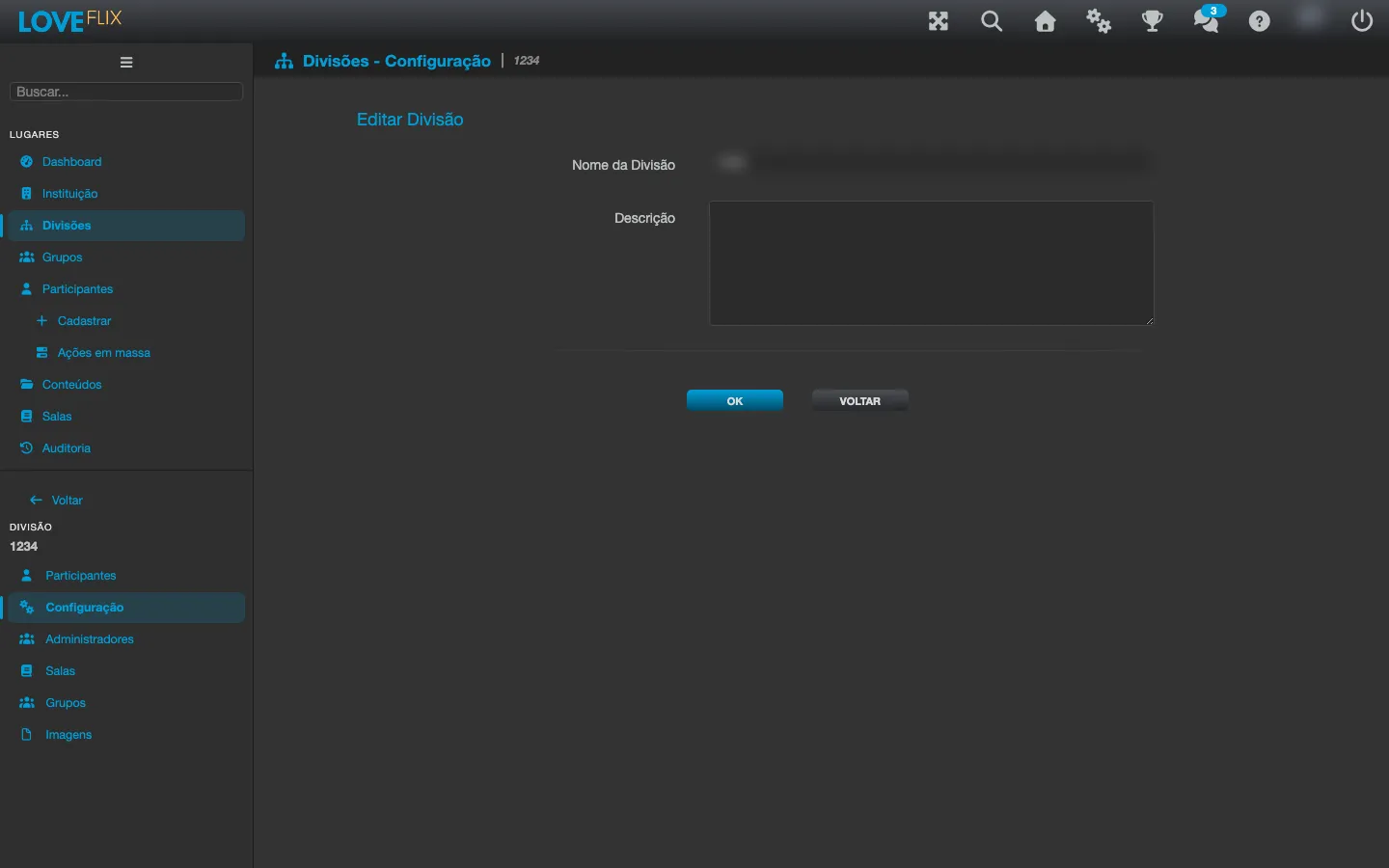
- Configuration - the division’s name and description.
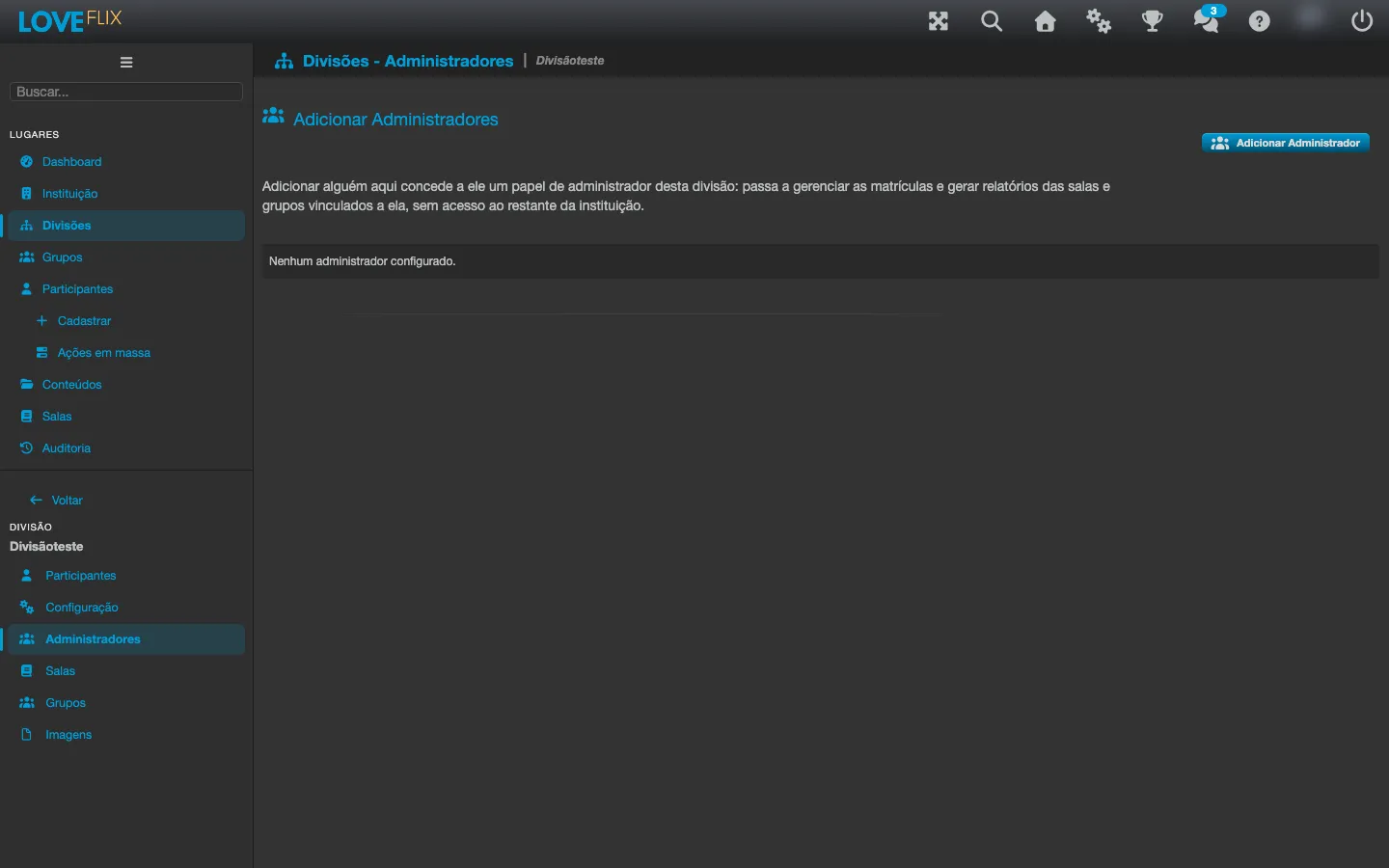
- Administrators - the administrators who manage this division. Use Add Administrator to appoint new ones; each one starts managing every class already linked to the division.
- Classes - the Classes linked to the division. Add Class opens a selector where you choose the Content and then the Class - the list brings only the Contents with at least one division-eligible Class that has not been linked yet. Add ALL Classes links every eligible Class at once.
- Groups - the Groups released to the division. This is what allows delegating enrollment: once a group is here, this division’s administrators can put its participants into that group without depending on a global administrator. Add Group opens the list of eligible groups and Add ALL Groups links all of them at once (asking for confirmation first).
- Images - the division’s own logos. See Division visual identity below.
When creating a new division, only the Configuration tab appears - the Participants, Administrators, Classes and Groups tabs become available after you save.
Division visual identity
Section titled “Division visual identity”A division can have its own logos, shown to those who belong to it after signing in to the platform - in the top bar, on the terms of use screen and on the check-in screen. The login screen and other anonymous screens keep the institution’s logo, because before signing in the platform does not yet know which division the person belongs to.
On the Images tab you find the same four logo slots the institution has (two sizes, each with a variant for the light theme and one for the dark theme). Each slot is independent:
- Upload an image to a slot for the division to start using that logo in that size.
- An empty slot keeps showing the institution’s logo - you can customize only one size and leave the rest inherited.
- Removing an uploaded logo returns the slot to the default behavior (institution logo).
Certificates editable by the division administrator
Section titled “Certificates editable by the division administrator”By default, only institution administrators can edit a class’s certificate (background image, template and text color). An institution administrator can release that editing to division administrators, for every class linked to a division at once, by checking Allow divisions to edit their classes’ certificates on the Divisions tab in the institution settings.
With that option turned on, the administrator of a division who opens a class linked to their division starts seeing that class’s Details tab - but restricted to the certificate sections only (background image, template and text color). The class’s other materials remain out of their reach.
Delegating enrollment to the division administrator
Section titled “Delegating enrollment to the division administrator”By default, whoever puts a participant into a group is a global administrator. By releasing the group to the division, that task moves to whoever is closest to the team.
To release a group, three things must be true:
- The group’s class allows divisions and is already linked to this division (Classes tab).
- The group is marked to allow divisions, in its configuration.
- All of that group’s classes are already linked to this division - a group with a class outside cannot be released.
Once that is done, the division administrator opens a participant from their division, goes to the Groups tab and adds the person to the group. From then on the person is enrolled automatically in the group’s classes (the enrollment appears within a few seconds). The same group selector appears on the Inclusion of Participants screen, to create the person and put them in the group in one go.
The division administrator’s reach stays limited to their division: they cannot put someone from another division into a group, nor move a participant from one division to another.
- The division name is unique within the institution.
- Deleting a division preserves history - the name may keep appearing in historical views and old reports.
- While a group is released to some division, it is not possible to uncheck the option that allows divisions on that group - the system refuses the change instead of silently removing the accesses. Take the group out of the divisions first.
- For the same reason, it is not possible to uncheck the option that allows divisions on a class while it belongs to a group released to a division.
When to use
Section titled “When to use”- Business units or branches with their own training teams.
- Areas with sensitive content (compliance, health) where each manager should see only their own slice.
- Contractors administering a specific catalog without access to the rest.