


Tracking my development
Some institutions enable the My development feature, which turns your profile’s Certificates tab into a fuller view of your history: total content items completed, certificates, workload, pending items that need your attention, and tracks in progress.
Where to find it
Section titled “Where to find it”Open your profile from the top menu and click the My development tab - it takes the place of the old Certificates tab, so there is nowhere else to look. A badge on your profile icon, in the top menu, warns you when you have a pending item that needs attention; see Pending items below.
Year summary
Section titled “Year summary”By default the screen shows the most recent year with a completion; use the year selector to see another year or pick All years. If you have never completed any content, the screen shows only a message saying so and the year selector does not appear - pending items and tracks in progress (when there are any) still show up normally.
For the chosen year, you see:
- Completed - how many content items you have completed. When some of them do not issue a certificate, a note such as “includes N without a certificate” appears.
- Certificates - how many certificates you have for that period.
- Average grade - the average of your grades on those content items’ evaluations (only shown when at least one item has a grade).
Below the numbers, a line shows the workload of completed content - the workload your institution registered for each content item, not the time you actually spent studying. This line only appears when at least one content item in the period has a registered workload; when some completed content item has no registered workload, a note such as “N content items without a registered workload” also appears.
Pending items
Section titled “Pending items”The Pending section gathers what needs your attention, even if you have not completed anything yet:
| What it is | When it appears | Action |
|---|---|---|
| Content ending | The enrollment ends in the next 30 days and you have not completed it yet | Continue |
| Certificate expiring or expired | The certificate has a validity period within 30 days of expiring, or has already expired | Redo |
| Certificate from an outdated version | The institution updated the content after you completed it | Redo |
| Qualification expiring or expired | A credential you registered in Qualifications is within 30 days of expiring, or has already expired (only when your institution uses the Professional qualifications feature) | Update in Qualifications |
Click each pending item’s action to go straight to it. A renewed certificate (you completed the content again and received a new certificate) drops off the list automatically - simply re-enrolling without completing it is not enough.
Tracks in progress
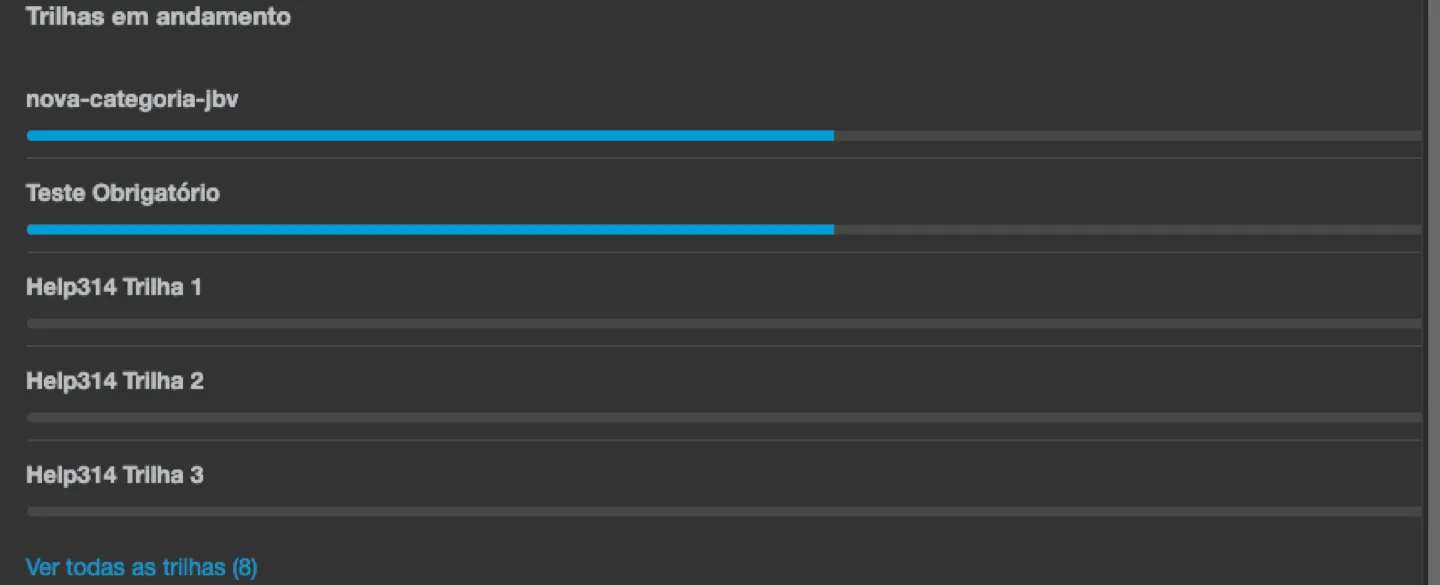
Section titled “Tracks in progress”When you are enrolled in a track that is not finished yet, it shows up in this section with the total already completed, in the format X of Y, and a progress bar. Tracks closest to finishing show up first. If you are in more than 5 tracks, the screen shows only the 5 most advanced ones, and the Show all tracks (N) button reveals the rest - click Show fewer to collapse it again.
Downloading my history as a PDF
Section titled “Downloading my history as a PDF”The Download my development record (PDF) button, on the same tab, generates a document with:
- Your institution’s name, your name, your login (with your CPF partially masked when you log in with a CPF) and the date and time the document was generated.
- The totals for content items completed, certificates issued and enrollments in progress.
- The list of completed content items, with the class, completion date, workload, grade and each certificate’s verification link.
- When your institution uses the Qualifications feature, two sections with your external credentials: those verified by the institution and those declared by you, not yet verified.
Keep this PDF if you ever need to prove your history elsewhere - anyone can confirm a certificate’s authenticity through the verification link that comes with each row.
Issuing and downloading certificates
Section titled “Issuing and downloading certificates”The way you earn and download each individual certificate has not changed - see the full walkthrough in Issue and download certificates.