


Available content and how to enroll
Besides the content you are already enrolled in, your institution may release other content for you to explore and enroll in on your own, directly from the Contents home screen.
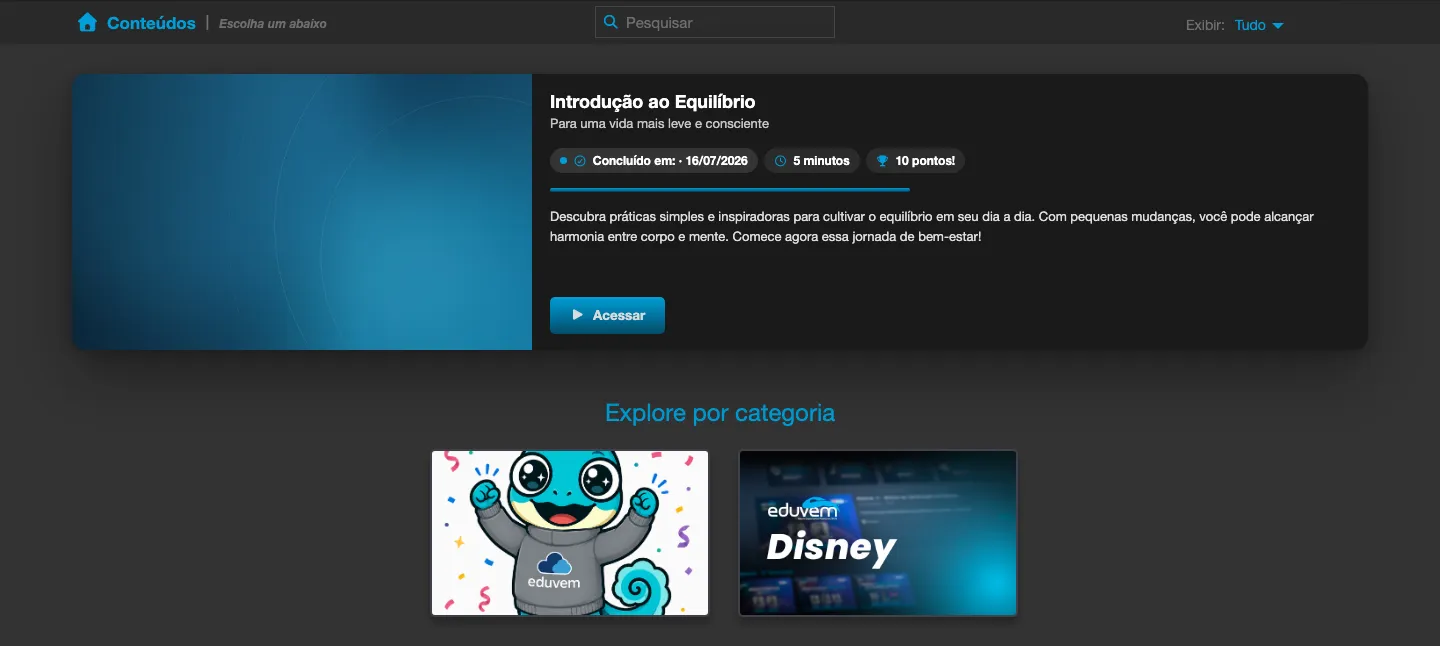
Finding available content
Section titled “Finding available content”On the Contents home screen, the content released to you appears alongside the rest, with the Available status on its card. The Show filter helps you narrow the list (All, My contents, In progress or Finished): with All, you also see what you have not started yet. If your institution uses the classic home screen format, use the Available additional filter and Sorting to organize the list however you prefer.
Requesting enrollment
Section titled “Requesting enrollment”When you open an available piece of content, you will find an enrollment button:
- Request enrollment - sends an enrollment request, which may need approval from your institution’s administrator. In the meantime, the content shows that the enrollment is awaiting approval.
After approval
Section titled “After approval”As soon as the enrollment is approved, the button changes to Start or Access, and the content works like any other you are enrolled in - see Access my content.