


The Open Questions lecture type
The Open Questions lecture gathers open-ended questions that the participant answers in their own words. Without a score, it collects answers and gives written feedback. With a maximum score, it gets a score: the tutor grades in the class’s Activities tab and the participant sees the score and the feedback inside the lecture itself.
Setting up the lecture
Section titled “Setting up the lecture”- In the modular content editor, click Add new lecture to this topic and choose Open Questions.
- Write the questions.
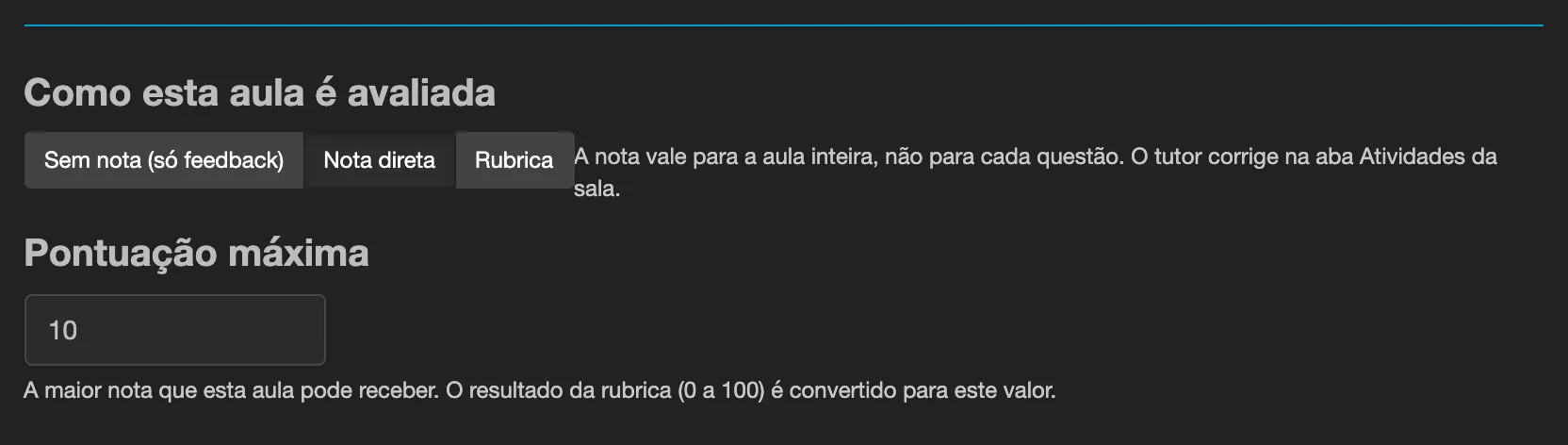
- Under How this lecture is scored, choose:
- No score (feedback only) - there is no score and the lecture does not enter the queue in the Activities tab; the feedback per question is still written as before, in the enrollment control window.
- Direct score - the tutor types a score from
0up to the Maximum score. - Rubric - the tutor chooses one level per criterion and Eduvem calculates the score. See Rubrics.
- When there is a score, set the Maximum score: the highest score the lecture can receive (from
0.01to999; the default is10). - Optionally, check Require participants to answer before advancing (see Requiring an answer before moving on).
- Publish the content.
Grading
Section titled “Grading”The grading queue is in the class’s Activities tab, together with file-upload Assignments.
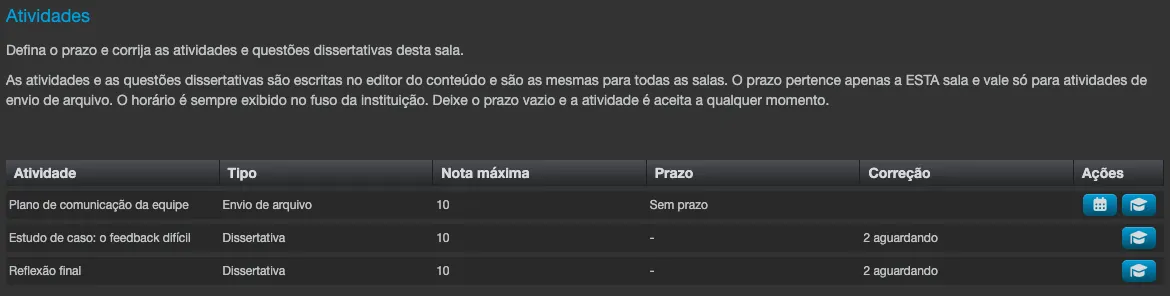
- Open the class and go to Activities. Each scored Open Questions lecture appears as a row, with Type
Essay, the Maximum score and, in the Grading column, how many answers areawaiting,All gradedorNo answers. The Deadline column shows-: Open Questions have no deadline. - Click the grading icon on the row. The Grading screen opens, with the summary (for example,
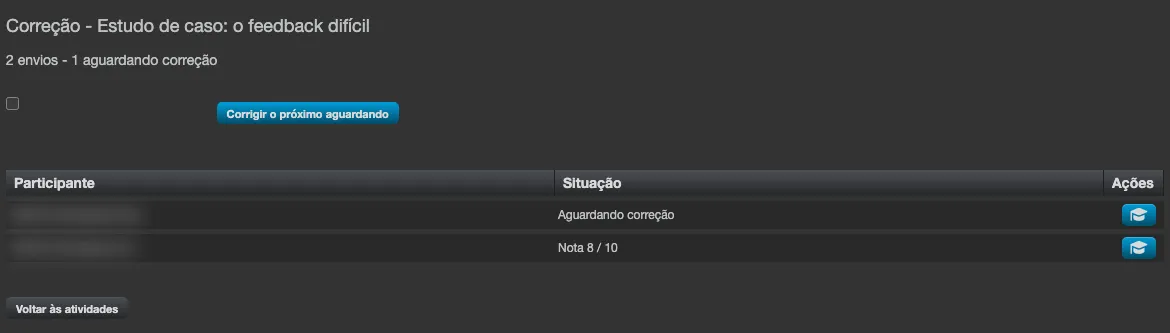
3 submissions - 2 awaiting grading), the Only awaiting grading option and the Grade next awaiting button. - The list has one participant per row, with Participant, Status (
Awaiting gradingorScore 8 / 10) and the grading icon. Only participants who have already answered appear. - Open an answer. The Grade essay answers window shows the participant’s name and, for answers awaiting grading, the position (
1 of 3 awaiting), the lecture title, the Current grade: and, for each Question, the prompt, the answer (orNo answer) and the Feedback field. - Give the score - by typing a value from 0 up to the maximum score, or by choosing the levels of the rubric - and click Save or Save and next to move to the next answer awaiting grading.
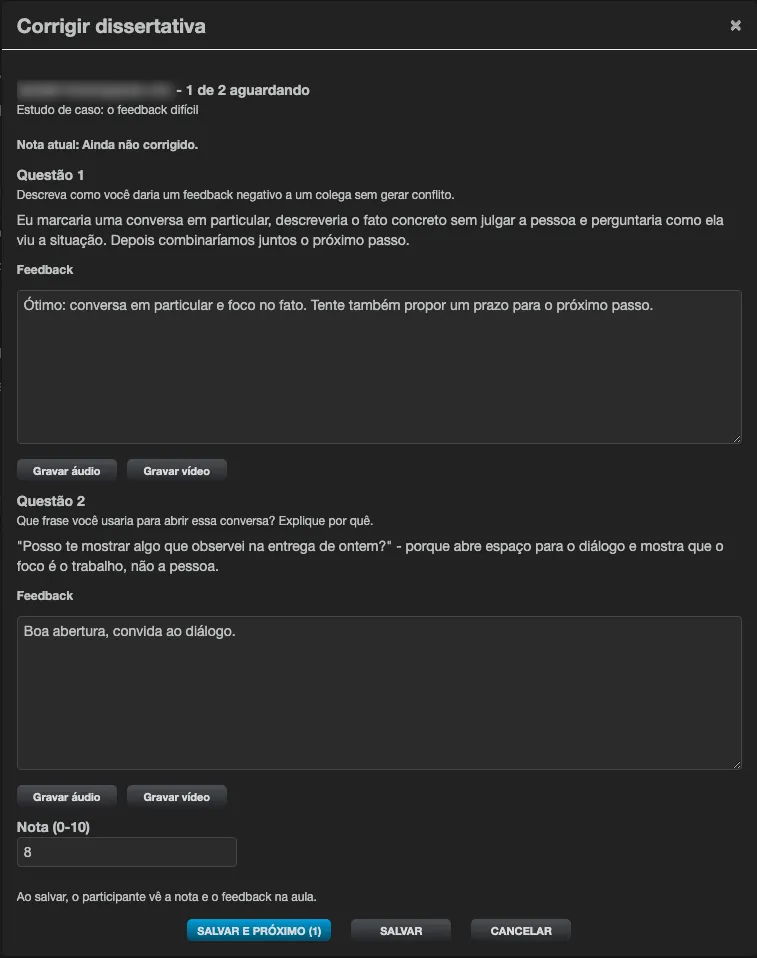
The window warns: When you save, the participant sees the score and the feedback in the lesson. Saving without a valid score shows Enter a score between 0 and <maximum>. Grading again is allowed; the last saved grading wins.
If a lecture has no answers yet, the screen shows There are no answers for this lesson yet.
Who can grade
Section titled “Who can grade”The same people who grade Assignments: institution administrators, Global Class Administrators, class administrators (in the classes they administer) and tutors with the Can grade? option (when the institution enabled Tutors can grade?).
What the participant sees
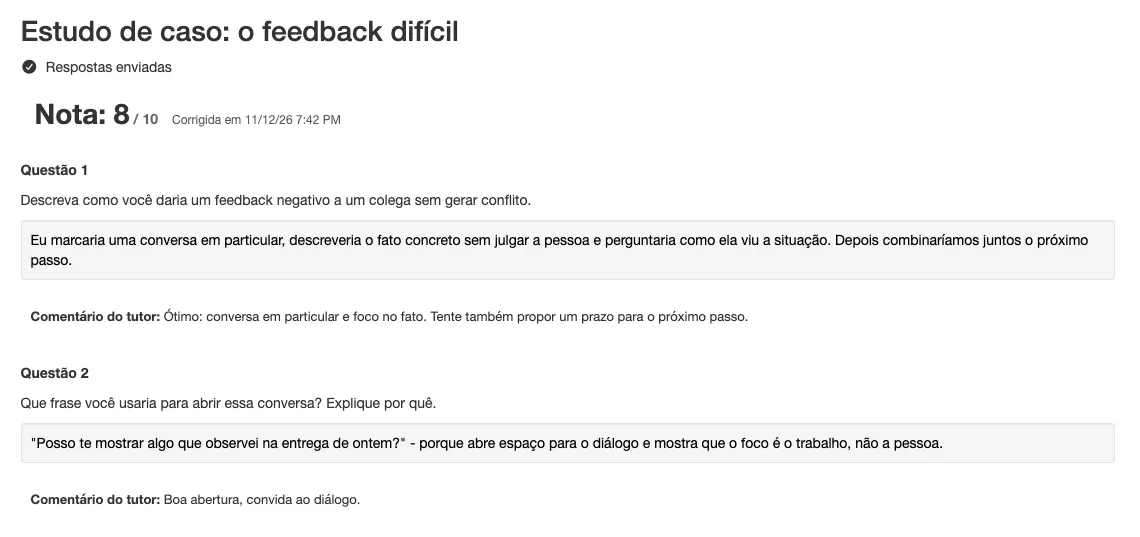
Section titled “What the participant sees”- Before grading, the lecture shows Waiting for grading. and says they will get a notice when the score is out.
- As soon as the tutor saves, the lecture shows the Score (
8 / 10), the date under Graded on and the Tutor’s comment under each question. In a lecture graded by rubric, it also shows the Level reached on each criterion - see Rubrics. - They receive a notification card on the platform and an e-mail (the Essay graded template) with the lecture title, the score and the link. The tutor’s comment is not in the card or the e-mail: it only appears inside the lecture.
- If the tutor grades again after the first publication, the notice and the e-mail use “revised score” wording. The participant never sees the internal reason for the change.
Where the score counts
Section titled “Where the score counts”- The essay score does not enter the content’s grade and does not affect certification, just like the score of Assignments.
- It can, however, feed the class Gradebook: when creating a gradebook item, choose the lecture under Linked activity:. From then on, every grading enters the gradebook on its own, converted to a score from 0 to 100, and answers already graded enter as soon as you link. If the class’s final grade comes from the gradebook, that score then counts toward passing.
- Reset enrollment (the full reset, only in classes whose final grade comes from the Content) deletes the participant’s essay scores, together with the rest of their progress.