


E-mail preferences
The e-mails the platform sends are organized into five types. Each person chooses, in their own profile, what to receive of each type. The institution administrator sets the default for people who have not chosen yet.
The e-mail types
Section titled “The e-mail types”| Type | What it includes | Options in the profile |
|---|---|---|
| Messages | Support and tutoring conversations | All, Daily summary, Off |
| My learning | Enrollments, reminders, certificates | On, Off |
| Class activity | Certifications and notices about participants | On, Off |
| Announcements | Notices sent by the institution | On, Off |
| Reports and summaries | Periodic summaries (enrollment requests) | On, Off |
Participants see only Messages, My learning and Announcements. Class activity and Reports and summaries appear only to administrators and to people who manage other people.
Choose what to receive, in your profile
Section titled “Choose what to receive, in your profile”- Open your profile from the top menu.
- In the E-mail notifications section, find the type you want.
- Pick an option from the list. The first option, Institution default, shows in parentheses what applies to you today.
- Save the profile with the save button.
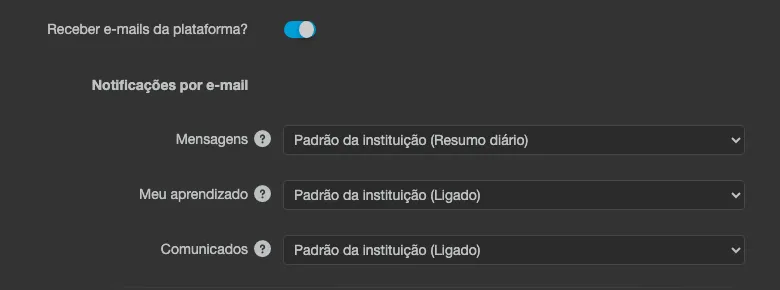
Choosing Institution default clears your choice, and whatever the administrator set applies again.
Messages: All or Daily summary
Section titled “Messages: All or Daily summary”- All: you receive one e-mail for each reply in your conversations.
- Daily summary: the day’s replies arrive together in a single e-mail, sent between 18:00 and 18:30 in the institution’s local time. New conversations still arrive right away.
- Off: you receive no message e-mails. Messages remain available on the platform.
For administrators: institution defaults
Section titled “For administrators: institution defaults”In Institution, in the Communication group, open the E-mail notifications tab. The tab is available to institution administrators.
The table has one row per e-mail type and two columns, Participants and Administrators. Where a type does not exist for a profile, the cell shows a hyphen. For each cell, choose:
- As today: no default set.
- All or Daily summary (only for Messages), or On for the other types.
- Off.
Save the tab. The platform confirms with E-mail notification defaults saved.
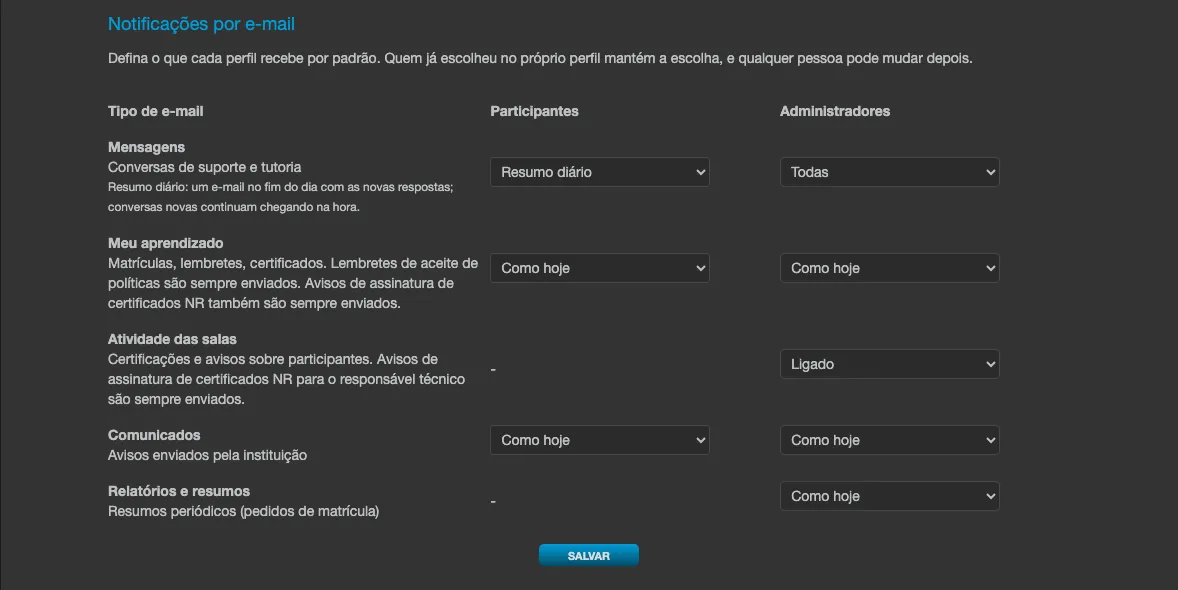
The default applies only to people of your institution who have never chosen anything in their profile. Anyone who already chose keeps their choice, and anyone can change it later: the default locks nobody.
When there is no choice and no default
Section titled “When there is no choice and no default”- Messages follows each person’s old setting: people who received one e-mail per message keep receiving All; everyone else gets Daily summary.
- The other types are On.
The link in every e-mail
Section titled “The link in every e-mail”Every e-mail that belongs to one of these types ends with the link Manage e-mail preferences. It opens your profile in edit mode, and you must be logged in.
The link is left out when the institution makes profiles read-only, or hides the profile button for people who do not sign in with a password.
Scheduled reports
Section titled “Scheduled reports”Scheduled report e-mails are a personal subscription and do not depend on these types. Each one ends with the link Manage or stop this scheduled report, which opens the institution’s reports tab (or the division reports screen), where the subscription can be changed or cancelled.
Example: no conversation e-mails, but certification notices
Section titled “Example: no conversation e-mails, but certification notices”Administrators who do not want conversation e-mails but still want to hear about participants’ certifications can:
- Set Messages to Off.
- Keep Class activity On.
To apply this to all administrators at once, set these two options in the Administrators column of the institution’s E-mail notifications tab.